
Android Wi-Fi Connected but No Internet: How to Fix It
Introduction
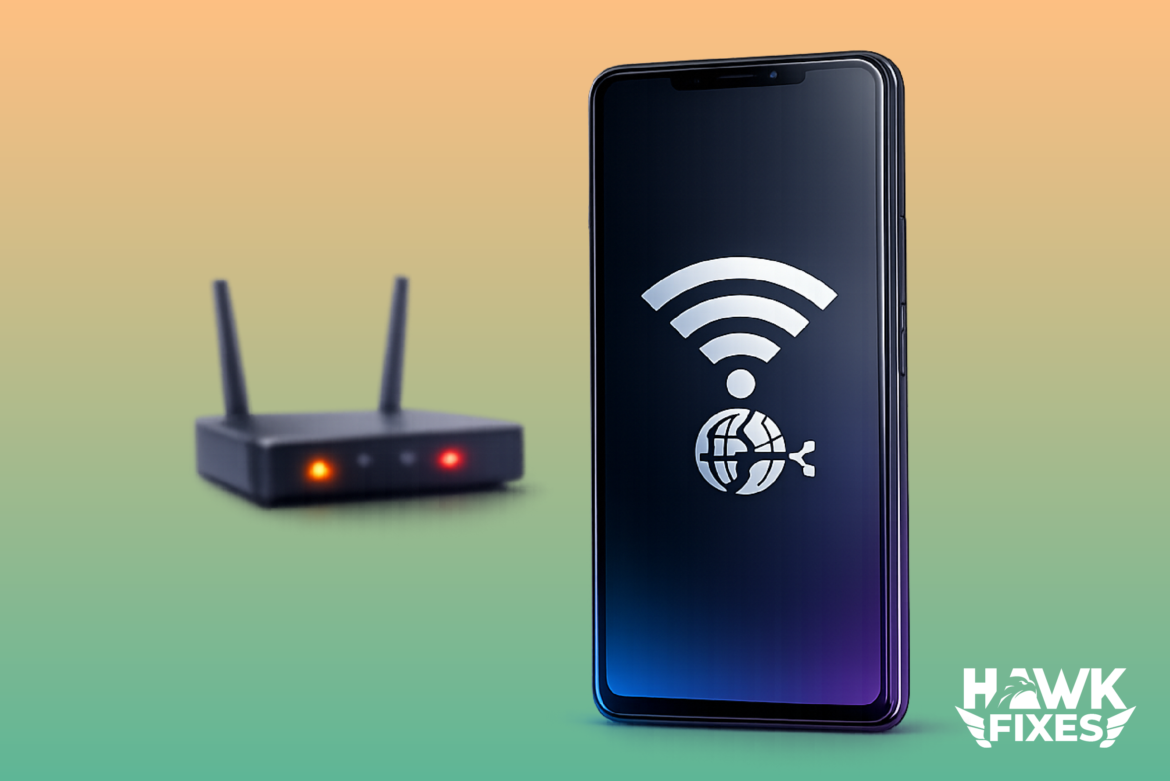
If your Android phone shows Wi-Fi connected but apps don’t load, videos don’t play, or websites won’t open, the phone is connected to the router—but it’s not reaching the internet properly. This usually happens because of a router hiccup, broken DNS, a bad IP lease, VPN/proxy settings, or Android’s network stack getting stuck after an update. The fixes below are safe and don’t require resetting your phone. Do them in order and stop once the internet works.
Restart Your Phone and Router
This clears temporary network sessions and is the fastest fix.
Steps
-
Turn Wi-Fi off on your phone.
-
Restart your phone.
-
Unplug your router/modem power for 30 seconds.
-
Plug it back in and wait 2–3 minutes.
-
Turn Wi-Fi on and reconnect.
If other devices on the same Wi-Fi also have no internet, the problem is likely your router/ISP, not Android.
Toggle Airplane Mode
This forces Android to rebuild network connections.
Steps
-
Enable Airplane mode for 10 seconds.
-
Disable Airplane mode.
-
Turn Wi-Fi on and test again.
Forget the Wi-Fi Network and Reconnect
A corrupted Wi-Fi profile (password/security settings) can break connectivity.
Steps
-
Go to Settings → Network & Internet → Wi-Fi
-
Tap your Wi-Fi network
-
Tap Forget
-
Reconnect and enter the password again
-
Test browsing or an app (YouTube, Play Store)
Disable VPN, Private DNS, or Proxy
VPNs and DNS filters can make Wi-Fi look connected but block traffic.
Steps (VPN)
-
Disconnect any VPN app
-
Fully close it (remove from recent apps)
-
Test internet
Steps (Private DNS)
-
Settings → Network & Internet → Private DNS
-
Set it to Off or Automatic
-
Test again
Steps (Proxy)
-
Wi-Fi settings → your network → Advanced
-
Proxy should be None (unless you intentionally use one)
Check “Connected without Internet” Status
Android sometimes detects no internet and disables traffic for that Wi-Fi.
Steps
-
Tap the Wi-Fi network name
-
Look for messages like No internet / Limited connection
-
If it keeps happening, continue with DNS + IP fixes below
Change DNS to a Reliable DNS
Bad DNS is a top cause of “connected but no internet.”
Steps (Android Wi-Fi DNS)
-
Settings → Wi-Fi
-
Tap your network → Edit (pencil icon)
-
Tap Advanced options
-
Change IP settings to Static (temporary)
-
Scroll to DNS and set:
-
DNS 1:
1.1.1.1 -
DNS 2:
1.0.0.1
-
-
Save, reconnect, test
If you prefer Google DNS: 8.8.8.8 and 8.8.4.4.
Note: Some Android versions don’t show DNS unless you switch IP to Static. That’s normal.
Renew the IP Address
A “bad” local IP lease can block internet even though Wi-Fi connects.
Steps
-
Forget the Wi-Fi network (as above)
-
Restart the phone
-
Reconnect to Wi-Fi
-
Test again
If your router assigns IPs poorly (rare, but happens), rebooting the router also refreshes leases.
Reset Network Settings
If Android’s network stack is messed up, reset only networking (not your files).
Steps
-
Settings → System → Reset options
-
Tap Reset Wi-Fi, mobile & Bluetooth (wording varies)
-
Confirm reset
-
Reconnect to Wi-Fi and test
This will remove saved Wi-Fi passwords, Bluetooth pairings, and some network preferences.
Test on Another Wi-Fi Network or Hotspot
This isolates whether the issue is your phone or your router/ISP.
Steps
-
Connect to a different Wi-Fi (friend’s Wi-Fi) or enable a hotspot from another phone
-
Test internet on your Android device
If internet works on another network: your router or ISP is the issue.
If internet fails everywhere: your Android network settings or DNS/VPN configuration is the issue.
Notes and Warnings
-
If only one app doesn’t work (but others do), it’s likely an app issue, not Wi-Fi. See Article #1 about Android app crashes.
-
Avoid “Wi-Fi booster” or “internet speed fix” apps. Many are junk and sometimes create VPN/proxy side effects.
- Wi-Fi connected but no internet on Windows
-
If your Wi-Fi works on phones but not on Windows too, check your router DNS/ISP. See Article #3 and Article #4 for Windows network/DNS fixes.
-
If your router is old, a firmware update can help, but don’t do that until you confirm it’s the router causing the issue.
Frequently Asked Questions
Why does Android say connected but nothing loads?
Because the phone connects to the router, but internet access fails due to DNS problems, IP issues, VPN/proxy settings, or the router itself not having internet.
Will resetting network settings delete my photos or files?
No. It resets networking only (Wi-Fi, mobile, Bluetooth). Your data stays.
Is changing DNS safe?
Yes. Using public DNS like Cloudflare (1.1.1.1) or Google DNS is common and reversible.
Fix DNS server not responding on Windows
What if Wi-Fi works on my laptop but not on my phone?
Then the problem is likely on the phone: VPN/Private DNS, corrupted Wi-Fi profile, or Android network stack.
What if Wi-Fi works on my phone but not on Windows?
That’s usually a Windows DNS or network stack issue. See Article #3 and Article #4.
Conclusion
Android “Wi-Fi connected but no internet” is usually not hardware damage. Start with restarts and forgetting the network, then disable VPN/Private DNS, switch DNS to a reliable provider, and reset network settings if needed. One of these fixes resolves the majority of cases quickly.
- Fix Android apps that keep crashing.
- Browse more Android fixes.