
Google Play Store Stuck on “Pending” or Not Downloading Apps: Fix It
Introduction
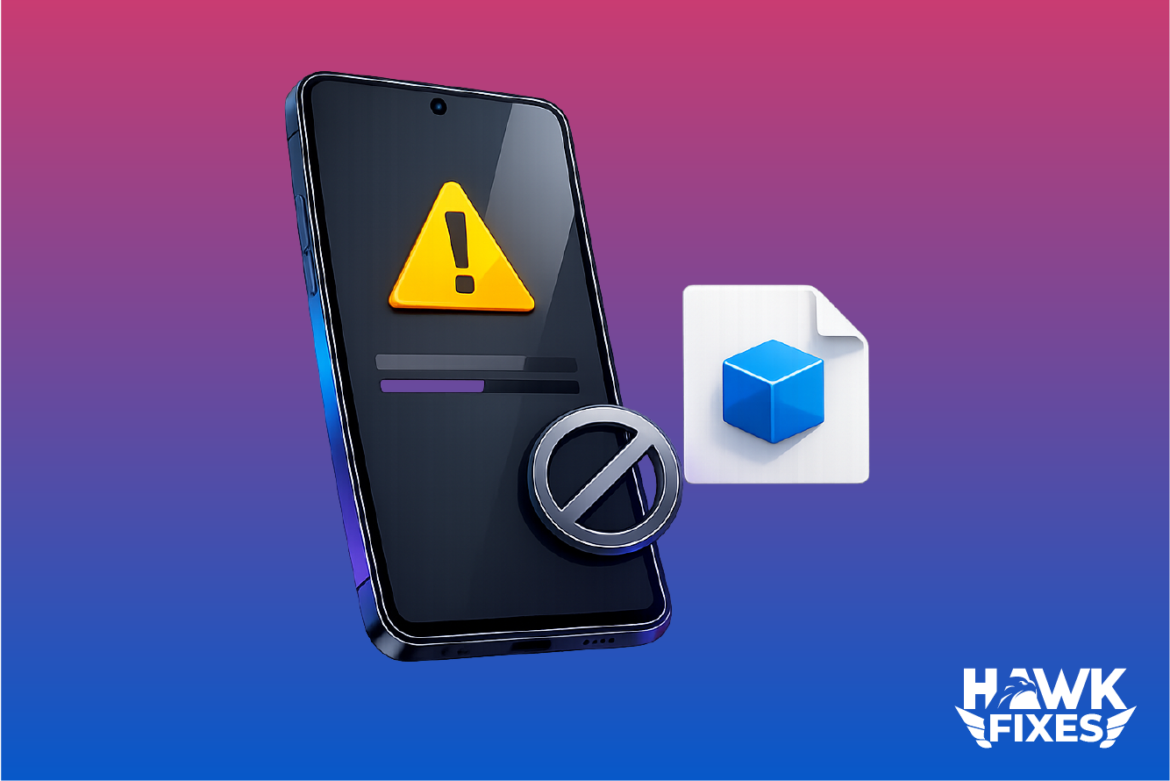
When Google Play Store gets stuck on “Pending” or downloads never start, the problem is usually not the app itself. The most common causes are unstable Wi-Fi, low storage, a stuck Play Store/Download Manager cache, Google account sync issues, or background data restrictions. The steps below are safe and work on most Android phones. Do them in order and stop when downloads work again.
Check Your Internet Connection First
If your Wi-Fi is connected but internet access is unstable, Play Store downloads often sit on pending.
Steps
-
Open a browser and load 2–3 websites.
-
Switch between Wi-Fi and mobile data to test.
-
If Wi-Fi is the issue, fix it first (see Article #5).
Restart Phone and Router
This clears stuck network sessions and background services.
Steps
-
Restart your phone.
-
Unplug router/modem power for 30 seconds, plug back in.
-
Reopen Play Store and retry the download.
Cancel the Download Queue
Sometimes a single stuck item blocks everything.
Steps
-
Open Google Play Store.
-
Tap your profile → Manage apps & device.
-
In Updates available / Downloads, cancel current downloads.
-
Restart Play Store and try installing one app only.
Clear Play Store Cache and Data
Corrupted cache is one of the top causes of “pending.”
Steps
-
Settings → Apps → Google Play Store
-
Storage → Clear cache
-
If still stuck: Clear data
-
Reopen Play Store and retry
Clearing data signs you out of Play Store temporarily; it does not delete your apps.
Clear Google Play Services Cache
Play Services handles authentication, downloads, and background tasks.
Steps
-
Settings → Apps
-
Enable Show system apps (menu)
-
Open Google Play services
-
Storage → Clear cache
-
Restart phone and retry
Enable/Reset Download Manager
If Download Manager is disabled or buggy, downloads won’t start.
Steps
-
Settings → Apps
-
Menu → Show system apps
-
Find Download Manager
-
If disabled: tap Enable
-
Storage → Clear cache
-
Restart phone and retry
Check Storage Space
Low storage can keep downloads stuck on pending without a clear message.
Steps
-
Settings → Storage
-
Keep at least 1–2 GB free (more is better).
-
Delete large files or uninstall unused apps.
-
Retry the download.
Disable VPN, Private DNS, or Data Restrictions
VPN/Private DNS can block Google services. Data saver can pause downloads.
Steps
-
Turn off any VPN app.
-
Settings → Network & Internet → Private DNS → set to Automatic.
-
Disable Data Saver (if enabled).
-
Allow background data for Play Store:
-
Settings → Apps → Google Play Store → Mobile data & Wi-Fi
-
Enable Background data and Unrestricted data (if available)
-
Remove and Re-add Your Google Account
If authentication tokens are stuck, downloads may not start.
Steps
-
Settings → Accounts → Google
-
Remove your Google account
-
Restart phone
-
Add the Google account again
-
Open Play Store and retry
Only do this if cache/data resets didn’t work.
Notes and Warnings
-
If Play Store works on mobile data but not Wi-Fi, fix Wi-Fi/DNS first (Articles #5 and #4).
-
Avoid “Play Store fixer” apps. Many add VPN/proxy settings and make it worse.
-
If you install apps via APK and see install errors, that’s a different problem (see Article #6).
Frequently Asked Questions
Why does Play Store stay on “Pending” for a long time?
Usually because downloads are queued, internet/DNS is unstable, storage is low, or Play Store/Download Manager cache is corrupted.
Will clearing Play Store data delete my apps?
No. It resets Play Store settings and may sign you out, but installed apps remain.
What if only one app is stuck on pending?
Cancel the queue, clear Play Store cache, then try installing that app alone.
Can Private DNS cause Play Store problems?
Yes. Some DNS filters block Google endpoints. Set Private DNS to Automatic to test.
Conclusion
Most Play Store “Pending” issues are caused by network/DNS problems, low storage, or stuck Play Store/Download Manager caches. Restart first, then clear Play Store cache/data, reset Download Manager, check storage, and disable VPN/Private DNS. One of these fixes restores downloads in most cases.
Android Wi-Fi connected but no internet
Fix “App not installed” on Android
Browse more Android fixes – Android category