
How to Fix “App Not Installed” on Android
Introduction
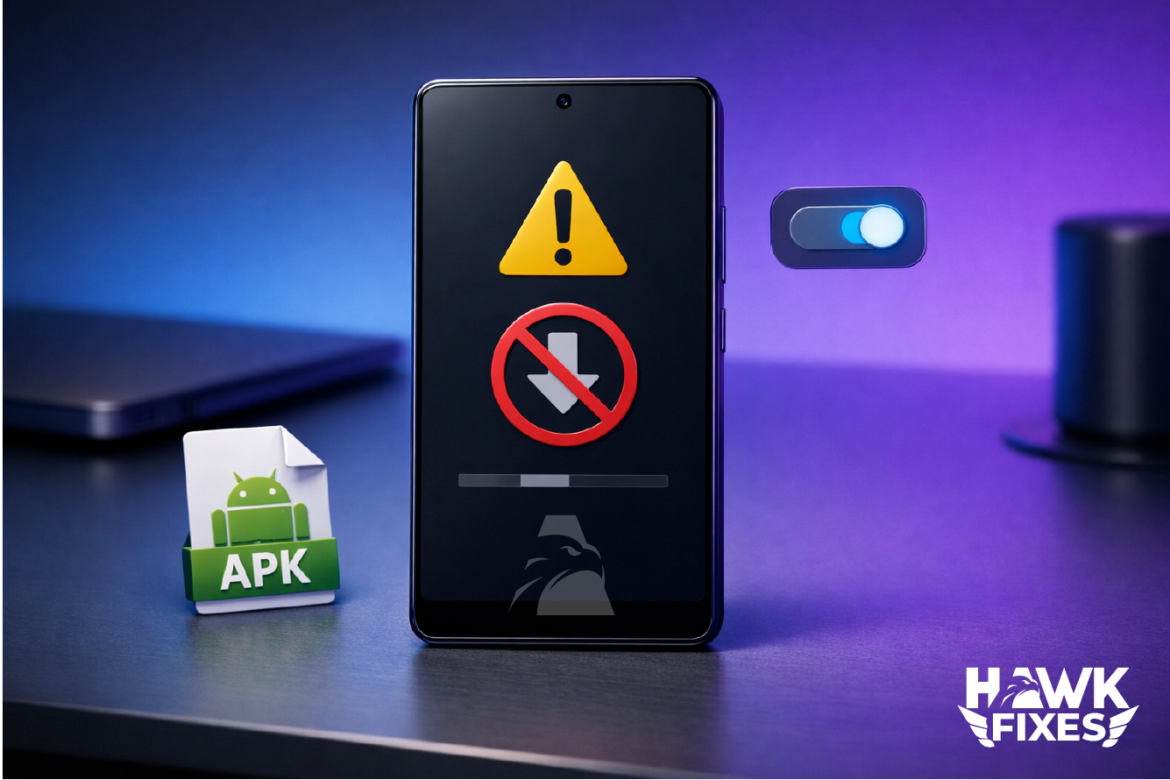
The “App not installed” error usually appears when installing an APK manually, restoring apps, or installing from outside the Play Store. It’s commonly caused by low storage, a corrupted APK, a signature mismatch (conflict with an already-installed version), or Android blocking unknown sources. The steps below fix the most frequent causes without resetting your phone.
Free Up Storage Space
Android may refuse installs if storage is low or the cache is bloated.
Steps
-
Settings → Storage
-
Delete large files or uninstall unused apps
-
Clear junk (Downloads, large videos, duplicates)
-
Retry installation
Download the APK Again
A partially downloaded or modified APK often fails installation.
Steps
-
Delete the APK file you tried to install
-
Re-download it from a trusted source
-
Try installing again
If the APK is older than your Android version supports, it may never install.
Remove Conflicting Version
If a similar app is already installed (same package name), Android may block it.
Steps
-
Settings → Apps
-
Search for the same app (or similar version)
-
Uninstall it
-
Restart phone
-
Try installing the APK again
This is the #1 fix for “signature mismatch” situations.
Allow Install Unknown Apps
Android blocks installs from browsers/file managers by default.
Steps (Android 8+)
-
Settings → Apps → Special access → Install unknown apps
-
Select the app you used to open the APK (Chrome / Files / your file manager)
-
Enable Allow from this source
-
Retry installation
Clear Package Installer Data
Package Installer can get stuck.
Steps
-
Settings → Apps
-
Tap Show system apps (menu)
-
Find Package Installer (or Package Manager)
-
Storage → Clear cache
-
Retry install
If “Clear data” exists, use it only if cache doesn’t work.
Fix SD Card / Storage Location Issues
If you install to SD card or the card is unstable, installs may fail.
Steps
-
Move installation to internal storage (if your device supports it)
-
Remove SD card temporarily
-
Retry installation
-
If it works, the SD card may be corrupted or slow
Notes and Warnings
-
Don’t install random APKs. “App not installed” can come from unsafe or modified packages.
-
If the app is from Play Store, prefer installing from Play Store to avoid signature conflicts.
-
If installs fail only on Wi-Fi due to slow downloads or broken connectivity, fix internet first (see Article #5).
- Android Wi-Fi connected but no internet
Frequently Asked Questions
Why do I get “App not installed” when installing an APK?
Usually the APK is corrupted, incompatible, or conflicts with an existing installed version (signature mismatch).
Will clearing Package Installer cache delete my apps?
No. It only resets installer temporary data.
Does this happen more on newer Android versions?
Yes. Android tightened security around unknown sources and package signatures.
What if the app installs but crashes immediately?
That’s a different problem. Use Article #1 about Android apps crashing.
Conclusion
Most “App not installed” errors come from storage limits, corrupted APK downloads, blocked unknown sources, or conflicts with an existing app version. Free storage, re-download the APK, remove the conflicting version, and enable unknown installs. One of these fixes resolves the majority of cases quickly.