
WiFi Connected but No Internet on Windows 10/11: How to Fix It
Introduction
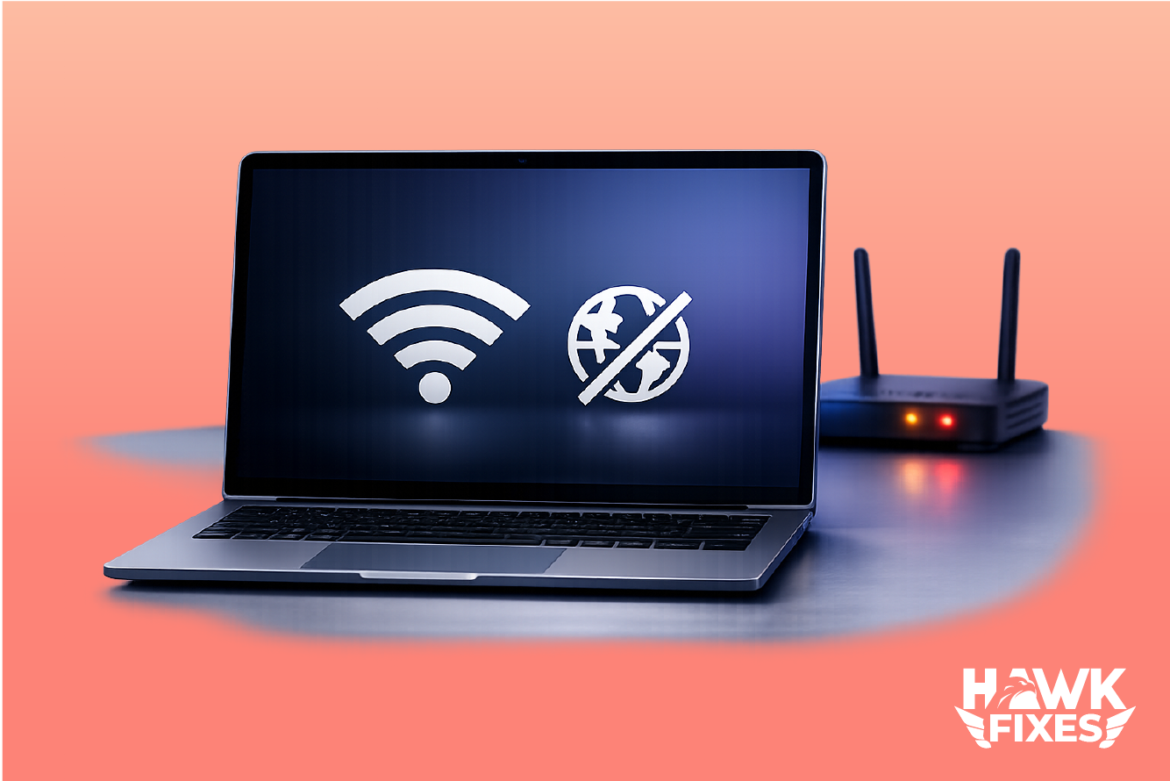
If your Windows PC shows Wi-Fi connected but websites won’t load, you’re dealing with a common network issue: the laptop is connected to the router, but it can’t reach the internet. This can happen after a Windows update, a router restart, VPN changes, DNS problems, or a corrupted network stack. The good news: most cases are fixable in a few minutes and don’t require reinstalling Windows. Follow the steps below in order—stop when the internet works again.
Restart the Router and Your PC
This sounds basic, but it fixes a lot of “connected/no internet” cases caused by stuck router sessions or Windows network glitches, do this if WiFi Connected but No Internet on Windows.
Steps
- Turn Wi-Fi off on your PC.
- Restart your PC.
- Unplug your router/modem power for 30 seconds.
- Plug it back in and wait 2–3 minutes until all lights stabilize.
- Reconnect to Wi-Fi and test a website.
If other devices also have no internet, the problem is likely router/ISP, not Windows.
Run Windows Network Troubleshooter
Windows can detect and fix common issues (bad gateway, DNS problems, adapter reset).
Steps
- Go to Settings → Network & Internet
- Windows 11: Advanced network settings → Network troubleshooter
Windows 10: Status → Network troubleshooter - Follow the prompts and apply fixes.
- Reboot and test again.
Disable VPN / Proxy (Common Cause)
VPNs and proxies can “capture” your traffic, and if they fail, you end up connected with no browsing.
Steps
- Disconnect any VPN app (and close it).
- Disable proxy:
- Settings → Network & Internet → Proxy
- Turn off Use a proxy server
- Test internet again.
If it works after this, the issue was VPN/proxy configuration.
Flush DNS and Renew Your IP Address
DNS problems are a major reason websites don’t load even though Wi-Fi is connected.
Steps
- Open Command Prompt as Administrator
- Search “cmd” → right click → Run as administrator
- Run these commands one by one:
ipconfig /flushdns
ipconfig /release
ipconfig /renew
- Restart the browser and test.
If your PC had a “bad” IP lease or stale DNS, this often fixes it immediately.
Reset the Network Stack
If your network stack is corrupted (often after driver issues or updates), do a full reset.
Steps
- Open Command Prompt as Administrator
- Run:
netsh winsock reset
netsh int ip reset
- Restart the PC.
- Test again.
This is safe. It just resets networking components, not your personal files.
Change DNS to a Reliable Public DNS
If your ISP or router DNS is unstable, you can set a stable DNS on Windows.
Steps (Windows 10/11)
- Control Panel → Network and Internet → Network Connections
- Right click your Wi-Fi adapter → Properties
- Select Internet Protocol Version 4 (TCP/IPv4) → Properties
- Choose Use the following DNS server addresses and set:
- Preferred DNS: 1.1.1.1
- Alternate DNS: 1.0.0.1
- Click OK → close → test internet.
If you prefer Google DNS:
- 8.8.8.8 and 8.8.4.4
Notes and Warnings
- If other devices on the same Wi-Fi also have no internet, focus on router/ISP.
- If the issue started right after a Windows update, network stack reset + driver update is usually the fix.
- Fix Windows Update stuck or failing
- Avoid random “driver fixer” tools. They cause more problems than they solve.
- If you use security software with “web protection,” temporarily disabling it can help test whether it’s blocking traffic.
Frequently Asked Questions
Why does Windows say “connected” if there’s no internet?
Because Windows is connected to the router (local network), but the router may have no internet route, DNS may be broken, or your PC’s network stack may be misconfigured.
Will network reset delete my files?
No. It only resets network settings. You may need to reconnect to Wi-Fi networks afterward.
Does changing DNS speed up internet?
Sometimes. It mainly fixes browsing issues caused by bad DNS. It won’t improve slow internet if your connection is weak.
What if Ethernet works but Wi-Fi doesn’t?
That usually points to a Wi-Fi adapter driver issue or Wi-Fi settings. Resetting the network stack and updating the Wi-Fi driver often resolves it.
What if Wi-Fi works on my phone but not on Windows?
Then your router is fine. The issue is almost certainly on the Windows side (DNS, VPN/proxy, network stack, adapter).
Conclusion
“Wi-Fi connected but no internet” on Windows is usually caused by DNS issues, VPN/proxy settings, or a broken network stack. Start with restarts and the troubleshooter, then flush DNS/renew IP, reset Winsock/IP, and finally set a reliable DNS. One of these steps fixes the majority of cases without any drastic actions.
- Browse more Windows fixes