

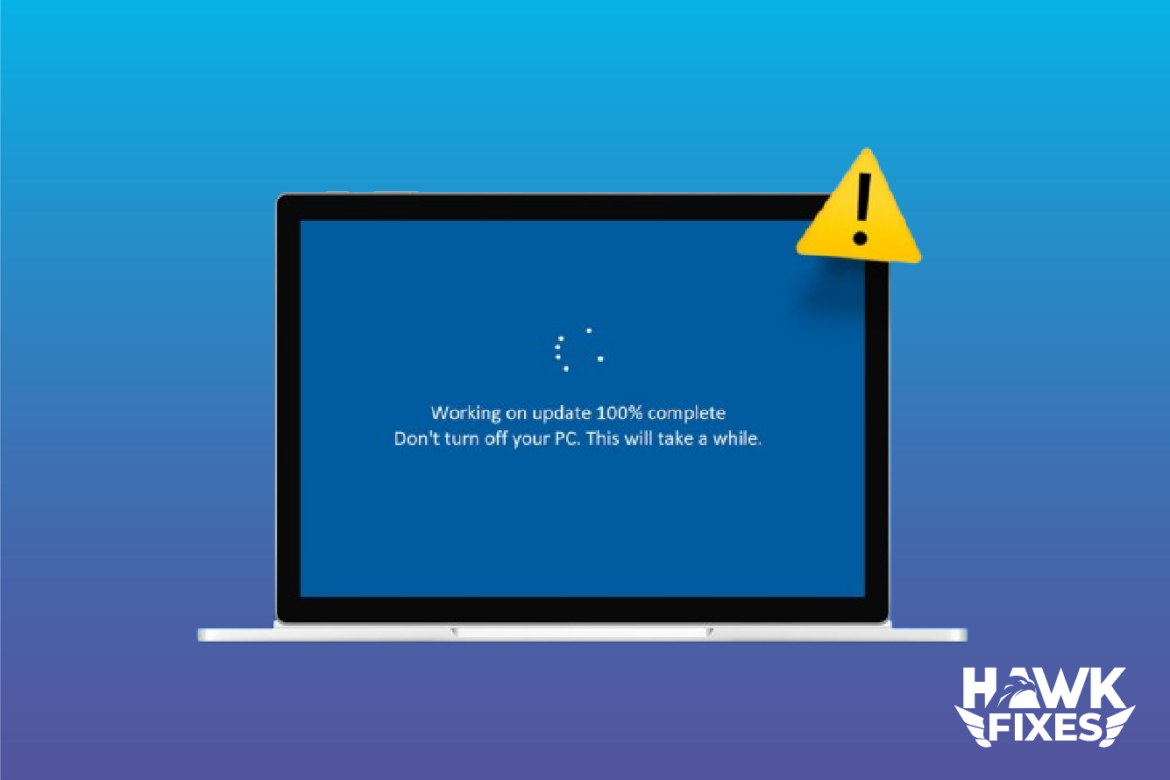
Windows Update Stuck or Failing? How to Fix It Safely
Introduction
Windows Update is essential for system security and stability, but it often gets stuck or fails with no clear explanation. Users commonly see updates frozen at a certain percentage, endless “checking for updates,” or repeated installation failures. These problems usually come from corrupted update files, service errors, or temporary system conflicts. In this guide, you’ll learn safe, step-by-step methods to fix a Windows update that is stuck or failing without risking your data.
Restart Your Computer
Temporary background processes can block Windows Update from completing.
Steps:
- Save all open work
- Click Start → Power
- Select Restart
- After reboot, open Settings → Windows Update and try again
This simple step resolves many update issues.
Check Your Internet Connection
An unstable or limited connection can cause update downloads to stall.
Steps:
- Disconnect from your network
- Reconnect to Wi-Fi or Ethernet
- Avoid VPNs during updates
- Retry the update
For large updates, a wired connection is recommended.
Run the Windows Update Troubleshooter
Windows includes a built-in tool to detect and fix update-related problems.
Steps:
- Open Settings
- Go to System → Troubleshoot
- Click Other troubleshooters
- Run Windows Update
- Follow on-screen instructions
Restart your computer after the tool completes.
Clear Windows Update Cache
Corrupted update files are a common cause of stuck updates.
Steps:
- Press Win + R, type services.msc, press Enter
- Stop Windows Update
- Navigate to:
C:\Windows\SoftwareDistribution
- Delete all files inside the folder
- Restart the Windows Update service
- Retry the update
This does not delete personal files.
Check Available Disk Space
Windows updates require free space to install correctly.
Steps:
- Open Settings → System → Storage
- Ensure at least 10 GB free
- Remove temporary files or unused apps
- Retry the update
Important Notes Before Advanced Fixes
- Do not force shutdown during updates
- Avoid third-party “update fix” tools
- Antivirus software may temporarily interfere
- Backup important files if issues persist
Frequently Asked Questions
Why does Windows Update get stuck at a certain percentage?
This usually happens when update files are being processed in the background or when files are corrupted.
Is it safe to delete the SoftwareDistribution folder?
Yes. Windows recreates it automatically and it does not affect personal data.
Can a slow PC cause update failures?
Yes. Limited resources or low disk space can slow or stop updates.
What if updates keep failing repeatedly?
The issue may require a manual update or system repair, which is less common.
Conclusion
A Windows update that is stuck or failing is usually caused by temporary system or file issues rather than serious damage. Restarting the system, clearing update cache files, checking storage, and using built-in troubleshooters can resolve most problems safely. Keeping Windows updated is important for security, so addressing update issues promptly is recommended.


One thought on “Fix Windows Update Stuck or Failing”